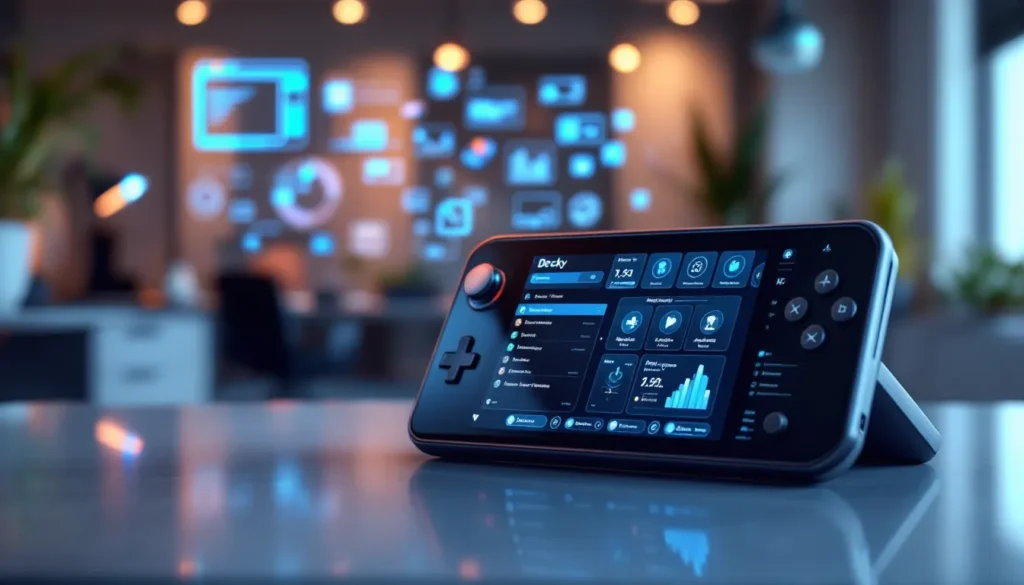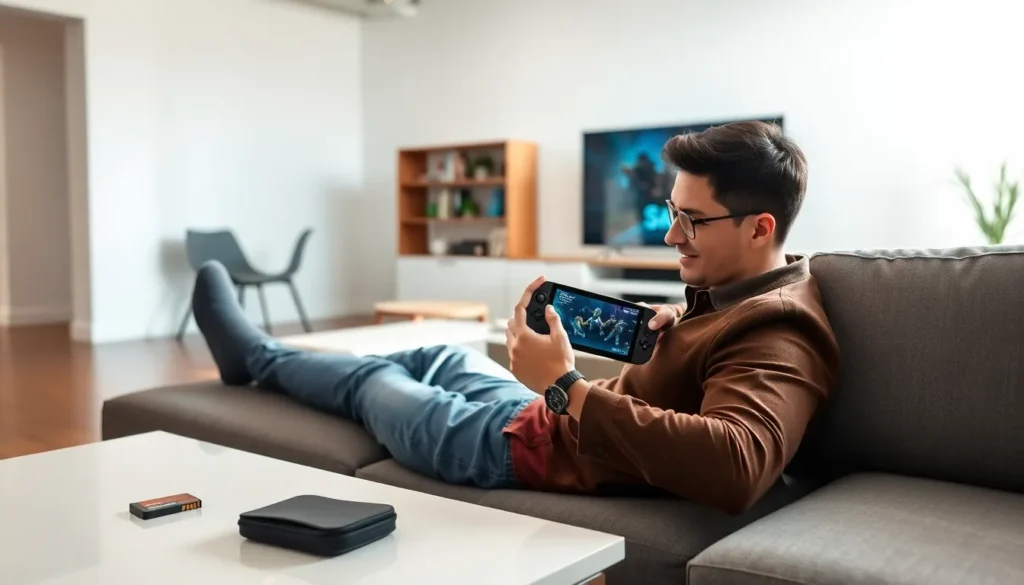

This Steam Deck guide covers everything new owners need to know. Valve’s handheld gaming PC has changed how people play their Steam libraries. It runs full desktop games on a portable device. Players can enjoy AAA titles on the couch, during commutes, or anywhere with a power outlet.
The Steam Deck launched in 2022 and quickly became a hit among PC gamers. It combines the power of a gaming laptop with the portability of a Nintendo Switch. But getting the most out of this device requires some know-how. This guide walks through setup, controls, performance tweaks, and essential accessories.
Table of Contents
ToggleKey Takeaways
- The Steam Deck is a handheld gaming PC by Valve that runs your full Steam library on a portable, Linux-based device.
- Check Valve’s compatibility database before buying games—Verified titles work perfectly, while Playable games may need minor tweaks.
- Use the 40 FPS frame rate lock for the best balance between smooth gameplay and extended battery life.
- Expand your storage with a high-speed microSD card (512GB or 1TB rated A2/V30) since games fill up space quickly.
- Desktop Mode transforms the Steam Deck into a full PC for installing non-Steam apps, emulators, and browsing the web.
- Essential accessories like a docking station, power bank, and screen protector significantly enhance your Steam Deck experience.
What Is the Steam Deck?
The Steam Deck is a handheld gaming PC made by Valve. It runs SteamOS, a Linux-based operating system designed for gaming. The device features a 7-inch touchscreen, built-in controls, and enough power to run most modern PC games.
Valve offers three Steam Deck models. The base model includes 64GB of eMMC storage. Mid-tier and premium versions feature 256GB and 512GB NVMe SSDs. The newer Steam Deck OLED model, released in late 2023, adds a vibrant OLED screen and improved battery life.
Key specifications include:
- Processor: Custom AMD APU with Zen 2 CPU and RDNA 2 GPU
- RAM: 16GB LPDDR5
- Display: 7-inch LCD (or OLED on newer models) at 1280×800 resolution
- Battery: 40Wh (original) or 50Wh (OLED model)
- Storage: Expandable via microSD card slot
The Steam Deck plays games from your existing Steam library. Valve maintains a compatibility database that rates games as Verified, Playable, Unsupported, or Unknown. Verified titles work perfectly out of the box. Playable games may need minor tweaks. This Steam Deck guide recommends checking compatibility before purchasing new games.
Setting Up Your Steam Deck
Setting up the Steam Deck takes about 15 minutes. Charge the device fully before starting. A depleted battery can interrupt firmware updates and cause problems.
Power on the Steam Deck by pressing the power button on the top edge. The device will guide users through initial setup. Connect to a Wi-Fi network first. The Steam Deck will download any available system updates automatically.
Next, sign into a Steam account. Users without an account can create one during setup. Two-factor authentication adds security but requires a phone or email for verification codes.
After signing in, the Steam Deck syncs with your existing Steam library. Cloud saves transfer automatically for supported games. This means players can continue their progress from a desktop PC without starting over.
The Steam Deck guide suggests these first steps after setup:
- Explore the Settings menu, Adjust display brightness, audio levels, and controller preferences
- Check storage, Install a microSD card if you need more space
- Download a few games, Start with Verified titles to ensure smooth performance
- Enable Desktop Mode, Access the full Linux desktop for additional software
Desktop Mode turns the Steam Deck into a full PC. Connect a keyboard, mouse, and monitor via the USB-C port. This mode lets users install non-Steam applications, browse the web, and customize the system.
Navigating the Interface and Controls
The Steam Deck uses a controller-friendly interface called Gaming Mode. This interface displays your library, store, and downloads in a format designed for thumbstick navigation.
The main controls include:
- A/B/X/Y buttons, Standard gamepad inputs
- Dual analog sticks, Movement and camera control
- D-pad, Menu selection and alternative inputs
- Touchscreen, Tap to select items or type
- Trackpads, Two capacitive pads for mouse-like precision
- Back buttons, Four programmable buttons on the grip
The Steam button opens a quick menu. Here, users can adjust brightness, check battery status, and access friends lists. The three-dot button (Quick Access Menu) provides performance overlays and quick settings.
This Steam Deck guide highlights the trackpads as a standout feature. They provide precise cursor control for games that lack controller support. Many strategy games and older titles work better with trackpad input than analog sticks.
Customizing controls happens through Steam Input. Press the Steam button, select Controller Settings, and remap any button. Users can create game-specific profiles. Community layouts offer pre-made configurations shared by other players.
The on-screen keyboard appears automatically when text input is needed. Press Steam + X to summon it manually. For faster typing, connect a Bluetooth keyboard or use the touchscreen.
Optimizing Game Performance
The Steam Deck handles most games well at medium settings. Some titles need adjustments to hit smooth frame rates. This Steam Deck guide explains key performance settings.
The Quick Access Menu (three-dot button) contains a Performance tab. Here, users can:
- Enable frame rate limiting, Lock games to 30, 40, or 60 FPS for consistent performance
- Use FSR (FidelityFX Super Resolution), AMD’s upscaling technology improves performance with minimal visual loss
- Adjust TDP limits, Lower power draw extends battery life
- Enable performance overlay, Monitor frame rates, temperatures, and power usage in real time
The 40 FPS lock deserves special mention. The Steam Deck’s display supports 40Hz refresh rates. Games running at 40 FPS feel smoother than 30 FPS while using less power than 60 FPS. Many players consider this the sweet spot for battery life and playability.
In-game settings matter too. Lower shadow quality, reduce draw distance, and disable anti-aliasing for demanding titles. The 800p native resolution means AA isn’t always necessary, pixels are small enough that jagged edges rarely stand out.
ProtonDB.com provides community reports on game performance. Users share their settings and workarounds. Check this resource when a game runs poorly. Someone has likely found a solution.
For emulation enthusiasts, the Steam Deck excels at running older consoles. EmuDeck simplifies setup for emulators like RetroArch, Dolphin, and PCSX2. Install it through Desktop Mode.
Must-Have Accessories and Tips
The right accessories improve the Steam Deck experience significantly. This Steam Deck guide recommends starting with these essentials.
MicroSD Card, Storage fills up fast. A 512GB or 1TB microSD card provides room for dozens of games. Look for cards rated A2/V30 for faster load times.
Carrying Case, The official case works well. Third-party options offer more protection and storage pockets for chargers and cables.
Screen Protector, A tempered glass protector prevents scratches. The LCD model especially benefits from this protection.
Docking Station, Connect to a TV or monitor for big-screen gaming. The official Steam Deck Dock includes USB ports, HDMI output, and Ethernet. Third-party docks cost less and often include similar features.
Power Bank, A 45W+ USB-C power bank extends playtime during travel. The Steam Deck draws significant power during intense gaming sessions.
General tips for new owners:
- Put the Steam Deck to sleep instead of shutting down. It resumes games instantly.
- Use offline mode when traveling without internet access.
- Join r/SteamDeck on Reddit. The community shares fixes, mods, and recommendations daily.
- Back up game saves to Steam Cloud. Local storage can fail.
- Clean the vents periodically. Dust buildup causes overheating.