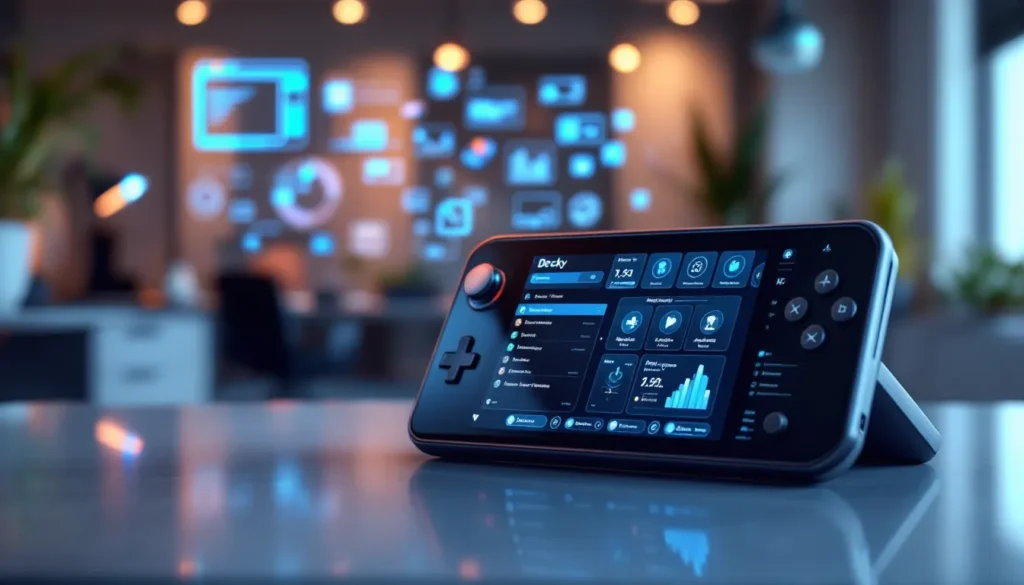
Steam Deck strategies can transform how players experience portable gaming. Valve’s handheld PC offers impressive flexibility, but getting the best results requires some know-how. Many owners don’t realize they’re leaving performance on the table or draining their battery faster than necessary. This guide covers practical approaches to optimize settings, manage game libraries, choose accessories, and use desktop mode. Whether someone just unboxed their Steam Deck or has owned one for months, these strategies will help them play smarter and longer.
Table of Contents
ToggleKey Takeaways
- Locking your frame rate to 40 FPS is one of the most effective Steam Deck strategies for balancing smooth gameplay with extended battery life.
- Use per-game profiles to automatically save optimized performance settings for each title without constant manual adjustments.
- Install frequently played games on the internal SSD for faster load times, and use high-quality A2-rated microSD cards for everything else.
- Check ProtonDB before purchasing PC games to verify Steam Deck compatibility and find community-tested tweaks.
- Desktop mode unlocks powerful Steam Deck strategies like installing emulators, running Epic and GOG games through Heroic Launcher, and using the device as a portable PC.
- Invest in key accessories like a 45W power bank, docking station, and screen protector to maximize your Steam Deck’s versatility and longevity.
Optimizing Performance and Battery Life
The Steam Deck delivers solid performance out of the box, but a few adjustments can extend playtime and improve frame rates. These Steam Deck strategies focus on finding the right balance between visual quality and power consumption.
Adjusting Frame Rate Limits
Locking the frame rate to 40 FPS is one of the most effective Steam Deck strategies available. The device’s 60Hz display makes 40 FPS feel smooth while cutting power draw significantly. Players can access this setting through the Quick Access Menu by pressing the three-dot button. For less demanding games, 30 FPS works fine and stretches battery life even further.
Managing TDP and GPU Clock Speed
The Steam Deck allows users to set thermal design power (TDP) limits manually. Dropping from 15W to 10W or even 8W reduces heat and power usage. Many indie games and older titles run perfectly at lower TDP settings. The GPU clock speed slider offers similar control. Reducing it to 800-1000 MHz often maintains playable frame rates while saving battery.
Using Per-Game Profiles
Steam Deck strategies become more powerful with per-game profiles. The device saves performance settings for each title automatically. Players should tweak settings in demanding games like Elden Ring differently than in lighter titles like Stardew Valley. This approach keeps optimization simple without constant manual adjustments.
Screen Brightness and Wi-Fi
Screen brightness drains battery quickly. Keeping it around 50% extends play sessions noticeably. Turning off Wi-Fi during offline games also helps. These small Steam Deck strategies add up over time.
Managing Your Game Library Effectively
Storage fills up fast on Steam Deck. Smart library management ensures players always have their favorite games ready without constant downloads.
Prioritizing Internal Storage
The internal SSD offers faster load times than microSD cards. Players should install frequently played games here. Titles with long load screens benefit most from SSD placement. Less demanding or turn-based games work fine on external storage.
Using MicroSD Cards Wisely
A high-quality A2-rated microSD card performs well for most games. Steam Deck strategies for storage include buying multiple cards for different game types. One card might hold RPGs, another racing games. Swapping cards takes seconds and effectively expands the library indefinitely.
Shader Pre-Caching
Steam downloads shader caches for many games automatically. This prevents stuttering during gameplay. Players should enable shader pre-caching in Steam settings. The download happens in the background and improves first-run performance.
Proton Compatibility Checks
Not every PC game runs perfectly on Steam Deck. Checking ProtonDB before purchasing saves frustration. The site rates compatibility and lists any required tweaks. Community reports often include specific Steam Deck strategies for troublesome titles.
Essential Accessories and Customization Tips
The right accessories enhance Steam Deck strategies for comfort and functionality. A few smart purchases make a real difference.
Protective Cases and Skins
The included carrying case protects during travel. Adding a skin prevents scratches during daily use. Dbrand and other manufacturers offer options that don’t affect heat dissipation. A screen protector guards against cracks, replacement screens cost over $100.
Docking Stations
A dock transforms the Steam Deck into a home console. Players connect it to a TV or monitor, add a controller, and play on a big screen. The official Valve dock works well, but third-party options cost less. USB-C hubs with HDMI, USB-A ports, and Ethernet support most needs.
External Controllers
The built-in controls work great for portable play. For docked mode, a PlayStation, Xbox, or third-party controller feels more natural on the couch. The Steam Deck recognizes most controllers automatically. Players can even use the device’s gyro for aiming while connected externally.
Power Banks
A 45W USB-C power bank extends gaming sessions away from outlets. Look for models with 20,000mAh or higher capacity. This accessory supports long flights or road trips where Steam Deck strategies for battery life aren’t enough alone.
Mastering Desktop Mode and Beyond
Steam Deck runs a full Linux desktop environment. Desktop mode unlocks capabilities that separate this device from traditional handhelds.
Accessing Desktop Mode
Holding the power button brings up a menu with a “Switch to Desktop” option. The KDE Plasma desktop appears, complete with a file manager, web browser, and app store. Steam Deck strategies expand dramatically here.
Installing Non-Steam Software
The Discover app store offers thousands of free programs. Players can install emulators like EmuDeck or RetroArch. Media apps like Spotify and VLC also work. Adding these programs to Steam lets users launch them from gaming mode later.
Running Windows Games Through Heroic Launcher
Games from Epic, GOG, and Amazon Prime Gaming work on Steam Deck. Heroic Launcher handles these storefronts with Proton compatibility. Installation takes a few minutes, and most games run without issues.
Using the Device as a PC
Some owners use their Steam Deck for productivity. Connecting a keyboard, mouse, and monitor creates a functional workstation. Web browsing, document editing, and video streaming all work smoothly. These Steam Deck strategies show how versatile the hardware really is.