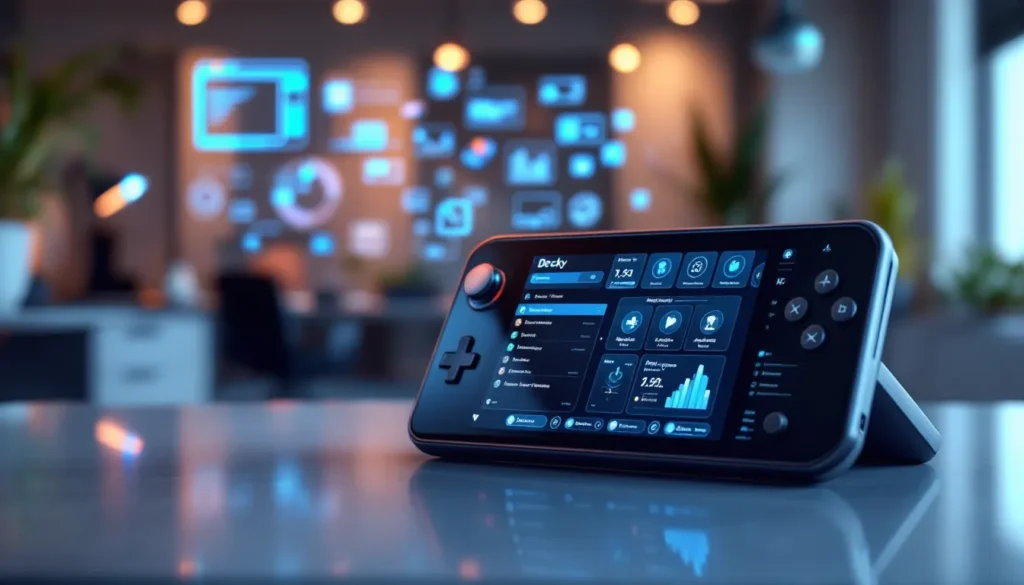

The Steam Deck for beginners can feel like a lot to take in at first. Valve’s handheld gaming PC packs serious power into a portable form factor, but all those buttons, menus, and settings might seem overwhelming. This guide breaks down everything new owners need to know. From initial setup to installing games and tweaking settings, readers will find clear steps to get gaming fast. Whether someone just unboxed their Steam Deck or they’re considering a purchase, this article covers the essentials without unnecessary fluff.
Table of Contents
ToggleKey Takeaways
- The Steam Deck for beginners is a portable handheld gaming PC that plays your existing Steam library on the go.
- Initial setup takes 10-15 minutes and includes Wi-Fi connection, Steam account login, and automatic game library syncing.
- Stick to Verified and Playable games at first to ensure smooth performance without troubleshooting.
- Optimize battery life by capping frame rates to 40 FPS and lowering screen brightness during longer sessions.
- Use Gaming Mode for everyday play and switch to Desktop Mode when you need full PC functionality.
- Expand storage with a microSD card up to 2TB and let cloud saves sync your progress across devices.
What Is the Steam Deck and Who Is It For
The Steam Deck is a handheld gaming PC made by Valve. It runs a custom Linux-based operating system called SteamOS and plays PC games from the Steam library. Think of it as a portable computer shaped like a game console.
Valve released the Steam Deck in February 2022, and it quickly became popular among PC gamers who wanted to play their existing library on the go. The device features a 7-inch touchscreen, dual trackpads, analog sticks, and a full set of gaming buttons.
So who should buy one? The Steam Deck for beginners works well for several groups:
- PC gamers who already own Steam games and want portability
- Console players curious about PC gaming without building a desktop
- Commuters and travelers who want quality gaming during downtime
- Casual gamers looking for a device that handles indie titles and AAA games alike
The Steam Deck isn’t a replacement for a high-end gaming PC. It’s a companion device that offers flexibility. Players can game on the couch, in bed, or on a flight without being tied to a desk.
Initial Setup and First-Time Configuration
Setting up the Steam Deck takes about 10-15 minutes. Here’s what beginners should expect.
First, charge the device. Valve recommends a full charge before the first boot. Once powered on, the Steam Deck walks users through language selection, Wi-Fi connection, and time zone settings.
Next comes Steam account login. Users need an existing Steam account or can create one during setup. Two-factor authentication adds security, and Valve sends a confirmation code via email or the Steam mobile app.
After login, the Steam Deck downloads any available system updates. These updates improve performance and fix bugs, so beginners shouldn’t skip them. The download size varies, but most updates finish within a few minutes on a decent internet connection.
The Steam Deck then syncs with the user’s Steam library. Any previously purchased games appear automatically. Cloud saves transfer too, so progress from a desktop PC carries over seamlessly.
Quick Tips for Setup
- Connect to 5GHz Wi-Fi when possible for faster downloads
- Enable Steam Guard for account protection
- Download games overnight to save time
- Check storage space before installing large titles
Once setup completes, the Steam Deck boots directly into Gaming Mode. This interface is designed for handheld use and makes the Steam Deck for beginners much easier to handle.
Navigating the Interface and Controls
The Steam Deck uses two main interfaces: Gaming Mode and Desktop Mode.
Gaming Mode is the default. It presents a console-like experience optimized for the handheld’s controls. Users see their library, store, and friends list in a clean, controller-friendly layout. Most beginners will spend 90% of their time here.
Desktop Mode turns the Steam Deck into a full Linux PC. It’s useful for installing non-Steam software, browsing the web, or adjusting advanced settings. Access it by pressing the Steam button, selecting Power, then choosing Switch to Desktop.
Learning the Controls
The Steam Deck has more inputs than a typical controller. Here’s a quick breakdown:
- Steam Button: Opens the main menu
- Quick Access Button (…): Shows performance overlay, notifications, and quick settings
- Trackpads: Function as mouse input or can be configured per game
- Back Grips: Four extra programmable buttons on the rear
The trackpads take some adjustment. They work great for games that need mouse precision, like strategy titles or shooters. Beginners should experiment with sensitivity settings to find what feels right.
Every game can have custom control layouts. Press the Steam button while in a game, select Controller Settings, and browse community-created configurations. Someone has probably already made a layout that works perfectly.
Finding and Installing Your First Games
Installing games on the Steam Deck works just like on a regular PC. Open the Steam Store from Gaming Mode, browse or search for a title, and hit Install.
But here’s something important for Steam Deck beginners: not every game runs perfectly. Valve uses a verification system with four categories:
- Verified: Works great out of the box
- Playable: Works with minor adjustments
- Unsupported: Has significant issues
- Unknown: Not yet tested
Stick to Verified and Playable titles at first. Filter the store or library by compatibility to see which games work best.
Great Starter Games
Some genres shine on the Steam Deck. Here are solid picks for beginners:
- Hades: Fast action, perfect controls, Verified status
- Stardew Valley: Relaxing gameplay, runs flawlessly
- Vampire Survivors: Simple controls, addictive loops
- Portal 2: Classic puzzle game, Verified
- Elden Ring: Demanding but runs well with tweaks
Games install to internal storage by default. Users can add a microSD card for extra space. The Steam Deck supports cards up to 2TB, and switching install locations takes just a few taps in settings.
Cloud saves sync automatically for supported games. This means progress moves between the Steam Deck and any other PC running Steam.
Essential Settings and Tips for New Users
A few quick adjustments make the Steam Deck experience much better. These settings help Steam Deck beginners get more battery life and smoother gameplay.
Battery Life Optimization
The Steam Deck lasts 2-8 hours depending on the game. Demanding titles drain it fast. To extend playtime:
- Lower screen brightness
- Cap frame rate to 40 FPS (a sweet spot for battery vs. smoothness)
- Enable half-rate shading in performance settings
- Turn off Wi-Fi when not needed
Performance Settings
Press the Quick Access button (…) and select the battery icon to access performance options. The frame rate limiter and TDP (thermal design power) slider live here. Lowering TDP reduces heat and power draw but also reduces performance. Find the balance that works for each game.
Useful Tips
- Enable Performance Overlay: Shows FPS, battery drain, and temperatures in real-time
- Use Sleep Mode: The Steam Deck resumes games instantly, just like a Nintendo Switch
- Update Proton: Proton is the compatibility layer that runs Windows games. Newer versions often fix issues
- Join Steam Deck Communities: Reddit’s r/SteamDeck and ProtonDB offer troubleshooting help and game recommendations
The Steam Deck also supports external accessories. USB-C hubs connect keyboards, mice, and monitors. A dock turns it into a desktop replacement for lighter tasks.
Don’t be afraid to experiment. The Steam Deck is a PC at heart. Users can tweak, customize, and personalize nearly everything.