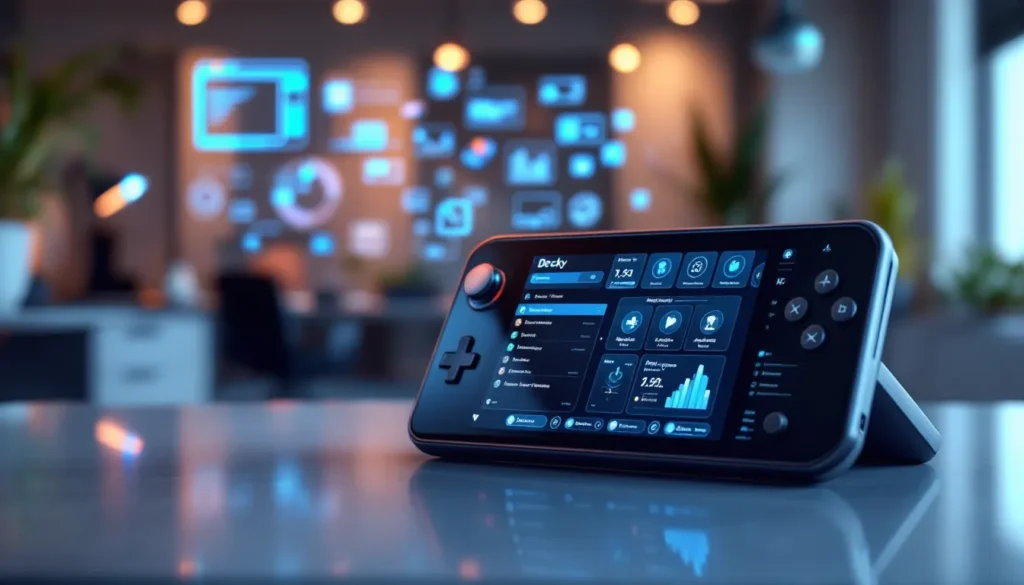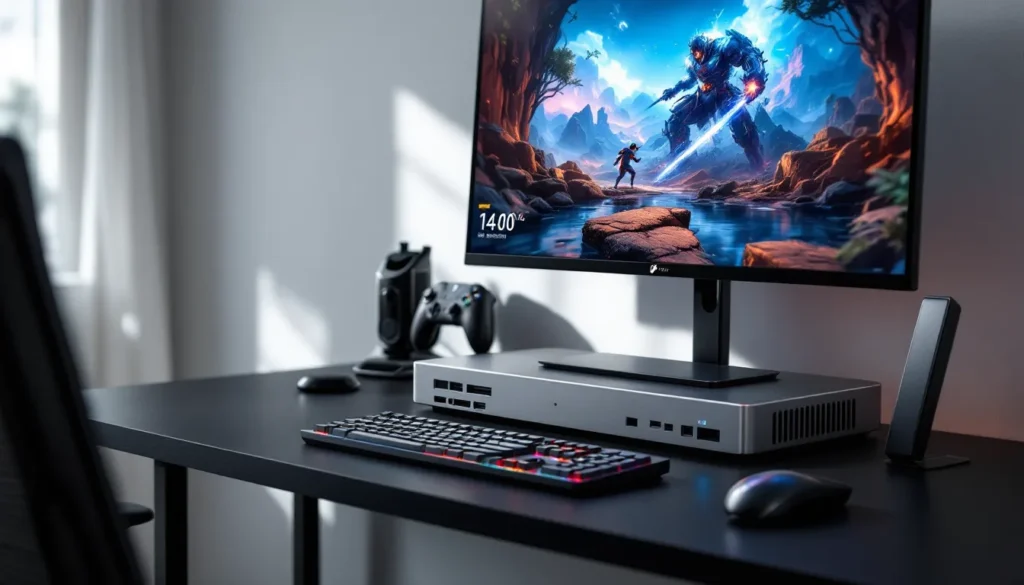

The Steam Deck revolutionized portable PC gaming, but it’s just half the story. When you dock your handheld at home, you’re trading flexibility for performance, assuming you’ve got the right dock. A quality Steam Deck dock transforms your experience from “good enough” to genuinely impressive, unlocking higher refresh rates, faster charging, and better connectivity. But not all docks are created equal. This guide cuts through the noise and helps you find the best Steam Deck dock for your setup, whether you’re a casual player dropping in for a few hours or a competitive gamer who demands zero compromises.
Table of Contents
ToggleKey Takeaways
- The best Steam Deck dock unlocks 1440p 120Hz display output, faster charging with 45W+ power delivery, and expanded connectivity for a full gaming station experience.
- Premium third-party options like JSAUX M1 and dbrand Killswitch offer more features (Gigabit ethernet, active cooling, extra ports) than the official $89 Valve dock, often at competitive prices.
- Essential features to prioritize include DisplayPort 1.4+ support, minimum 45W power delivery, at least 3-4 USB ports, and active or passive cooling to prevent thermal throttling during extended sessions.
- Budget-conscious gamers can find reliable Steam Deck docks under $80, though they may lack ethernet and advanced cooling—verify reviews and specs before purchasing to avoid quality issues.
- Proper dock setup requires attention to cable management, thermal airflow clearance, and power distribution to avoid charging slowdowns and USB connectivity problems.
- Most dock issues resolve with simple troubleshooting: reseating cables, rebooting your device, unplugging conflicting USB peripherals, or testing with a different cable or monitor.
What Is A Steam Deck Dock And Why You Need One
A Steam Deck dock serves as the bridge between your handheld device and your monitor or TV setup. Unlike Nintendo’s dock, which is purely mechanical, the official Valve Steam Deck dock actively manages power, video output, and peripheral connectivity. It outputs video through USB-C (via DisplayPort Alt Mode) while simultaneously charging your device, a feat most handheld chargers can’t handle.
You need a dock because the Steam Deck’s onboard screen, while sharp, is small. Docking unlocks 1440p output at 120Hz on compatible displays, transforming games into a full-scale experience. The charging aspect matters too: playing demanding titles like Cyberpunk 2077 or Baldur’s Gate 3 on battery alone drains your deck in under two hours. A dock keeps you charged while you play, eliminating the battery anxiety that plagues portable gaming.
Beyond the essentials, docks provide USB ports for controllers, keyboards, headsets, and other peripherals. This connectivity layer is crucial for serious players who treat their docked setup like a secondary gaming PC. Whether you’re running through Elden Ring at 1440p or tackling strategy games that benefit from mouse-and-keyboard input, a good dock makes your Steam Deck feel less like a handheld and more like a full-fledged gaming station.
Key Features To Look For In A Quality Steam Deck Dock
Not every dock is worth your money. Before you buy, focus on these non-negotiable specs.
Display Connectivity And Resolution Support
The best Steam Deck docks support USB-C video output with full DisplayPort Alt Mode support. This means your dock can handle 1440p at 120Hz, the sweet spot for most gaming displays. Some docks support 4K, but that’s overkill for most Steam Deck games: you’re better off pushing higher frame rates at 1440p.
Confirm your dock supports both HDMI and USB-C video outputs if you have multiple display options. USB-C is the standard now, but older setups might rely on HDMI adapters. A dock with dual display support gives you flexibility without needing additional adapters.
Checking the DisplayPort version matters too. DisplayPort 1.4 or newer ensures you’re not bottlenecked when newer games demand it. Older docks stuck on DisplayPort 1.2 limit you to 1080p 144Hz, which feels sluggish compared to 1440p 120Hz.
Power Delivery And Fast Charging
Power delivery (PD) is where docks separate the premium from the budget. The official Valve dock provides 45W PD, which charges your Steam Deck while you play, critical for long sessions. Anything less than 45W means slow charging under load.
Look for docks with 65W or higher PD if you want future-proofing or plan to use USB peripheral devices simultaneously. The power budget matters: running a dock with 45W PD while also charging a wireless controller or phone through the dock’s additional ports can bottleneck your Steam Deck’s charge rate.
Temperature regulation is equally important. A dock that dissipates heat well prevents unnecessary throttling. Check if the dock has passive cooling (heatsinks) or active cooling (built-in fans). Passive cooling is quieter but less effective: active cooling handles sustained gaming better.
Port Variety And Expandability
Beyond charging and video, ports determine how versatile your dock is. Essential ports include:
- USB-A ports (3.0 or 3.1): Minimum two. USB 3.1 is preferable for external SSDs or fast peripherals.
- USB-C ports: Beyond the main charging port, extra USB-C slots let you charge additional devices or connect high-speed peripherals.
- Ethernet: A wired connection beats Wi-Fi for online gaming or downloading large titles.
- SD card reader: Nice-to-have if you need quick access to expanded storage.
A dock with at least 3-4 USB ports gives you room to plug in a controller adapter, headset, keyboard, and maybe a portable SSD. Anything less feels restrictive. Ethernet is genuinely useful if your Wi-Fi is weak or you’re playing competitive games where ping matters.
Official Valve Steam Deck Dock vs Third-Party Alternatives
This is the question every Steam Deck owner asks: is the official dock worth it, or should you go third-party?
Why The Official Dock Remains Relevant
The official Valve Steam Deck dock (first released in 2022, refreshed in 2024) costs $89 and delivers solid fundamentals: 45W PD, USB-C DisplayPort video output, and three USB-A 3.0 ports plus one USB-C for charging. It’s reliable, officially supported, and guaranteed to work without driver headaches.
The appeal is simplicity. You dock your Deck, it charges and displays, no troubleshooting. For players who aren’t tech-savvy or prioritize peace of mind, that reliability justifies the price. Valve also handles future software updates smoothly on its own dock, reducing the risk of compatibility breaks.
The design is functional if not exciting. It’s plastic, compact, and stays out of the way. It sits flat on a desk and doesn’t look out of place next to your monitor setup. For aesthetic minimalists, that matters.
But, the official dock has real limitations. It lacks ethernet, an SD card reader, and advanced features like RGB lighting or premium build materials. If you need more ports or wired networking, you’re immediately looking elsewhere.
When To Consider Third-Party Options
Third-party docks shine when you need more features or better value. The market exploded after 2023, and manufacturers like JSAUX, dbrand, Anbernic, and others released docks that match or exceed the official offering for less money or with added features.
Third-party docks to consider typically offer:
- Ethernet connectivity: JSAUX docks include a full Gigabit ethernet port, critical for competitive gaming or large downloads.
- Better cooling: Some models pack active cooling systems that prevent thermal throttling during extended sessions.
- More ports: Extra USB-A and USB-C slots eliminate port contention when running multiple peripherals.
- Lower price: Competitive models sit at $60–$75, undercutting Valve by $15–$20 while matching specs.
The trade-off is certification and long-term support. Third-party docks aren’t officially endorsed by Valve, though major manufacturers have solid track records. Occasional software updates might affect compatibility, rare but possible. Read recent user reviews before buying to catch any new issues.
Benchmark the dock you’re considering against the official model’s specs. If it matches or exceeds them and costs less, it’s worth considering. If it’s a no-name brand with vague specs and no reviews, skip it.
Top-Rated Steam Deck Docks For Different Budgets
Let’s get specific. Here are the standout docks across price tiers, based on 2026 availability and user feedback.
Premium Docks With Advanced Features
JSAUX M1 Docking Station ($99–$120)
The JSAUX M1 is the gold standard for power users. It delivers 65W PD, Gigabit ethernet, four USB-A 3.1 ports, one USB-C port, and active cooling with a whisper-quiet fan. 1440p 120Hz support is rock-solid. If you’re running an external SSD, wired controller, and want ethernet for ranked gaming, this dock handles it all without breaking a sweat. The only downside: it’s bulkier than the official dock, and the fan adds a few decibels of noise (though minimal).
dbrand Killswitch Dock ($109)
dbrand’s Killswitch combines premium materials with excellent specs: 65W PD, Gigabit ethernet, four USB-A 3.1 ports, and a passively cooled aluminum chassis. It looks sharp (available in black, white, and limited colors) and runs silent since there’s no fan. It’s heavier than competitors but sits stable. Great for gamers who value aesthetics alongside performance. The trade-off: passive cooling means slightly higher thermals than active solutions during extreme sessions, though still manageable.
Anbernic GN Dock 2.0 ($130–$150)
If budget allows, the GN Dock 2.0 is a flagship option. It packs everything: 100W PD (future-proof for future devices), Gigabit ethernet, six USB ports (two USB-C, four USB-A 3.1), an SD card reader, and RGB lighting. Active cooling is included. This is overkill for most players, but if you’re treating your Deck like a productivity machine and gaming station, the extra ports justify the premium.
Mid-Range Options Balancing Performance And Value
JSAUX Z1 Docking Station ($69–$79)
The Z1 is JSAUX’s budget-friendly sibling to the M1. It cuts the Gigabit ethernet and USB-C port but keeps the 45W PD, four USB-A 3.1 ports, and active cooling fan. It’s the best-value option if you want ethernet removed from the equation. Perfect for casual gamers who dock at home where Wi-Fi is reliable. User reviews consistently praise reliability and silent operation.
Valve Official Steam Deck Dock ($89)
It’s still competitive at mid-range pricing. You’re paying for official support, simplicity, and a track record. No surprises, no driver compatibility drama. If you want to avoid any risk and don’t need ethernet or extra features, the official dock remains a safe buy. Many competitive gamers stick with it out of principle.
MOYIINYU Docking Station ($55–$65)
A darker horse in the mid-range. MOYIINYU offers 45W PD, three USB-A 3.0 ports, passive cooling, and solid build quality for under $65. It’s not feature-rich, but if you’re budget-conscious and only need basic functionality, it performs. Reviews note reliable charging and stable video output. Check user feedback on your specific model variant before buying, as QC varies slightly.
Budget-Friendly Docks For Casual Gamers
Generic USB-C Docks ($30–$45)
If you just need charging and video output and don’t care about extra ports, generic USB-C docks from brands like REXLIS or no-name Amazon listings hit the bare minimum. 45W PD, basic USB-A ports, decent build. The risk: QC is inconsistent, and you lose any warranty support if something breaks. Read recent reviews carefully: some of these fail after a few months.
Anbernic Basic Dock ($40–$50)
Anbernic’s entry-level dock is actually solid. It offers 45W PD, two USB-A 3.0 ports, passive cooling, and reliable charging. It won’t win awards for ports or speed, but it works. Good stepping stone if you’re unsure whether docking is worth it.
Pro tip: Check Steam Deck tools before buying a dock, you might discover software tweaks that maximize your current setup before investing in hardware. Similarly, exploring Steam Deck ideas shows creative use cases where certain docks shine.
Dock Setup And Optimization Tips
Once you’ve picked your dock, setup matters. Small adjustments prevent headaches and optimize performance.
Cable Management Best Practices
Cable clutter kills aesthetics and causes connectivity issues. Here’s how to manage it:
- Use cable clips or sleeves: Velcro straps bunch cables together and route them behind your monitor or desk. Keeps your setup clean and prevents accidental unplugging.
- Separate power from data cables: Keep your dock’s power cable isolated from USB data cables to reduce electromagnetic interference. This is especially important if you notice intermittent controller disconnects.
- Use short cables where possible: Longer cables introduce lag over USB, not massive, but noticeable with responsive peripherals. Keep dock-to-monitor cables under six feet if feasible.
- Label everything: Use small labels on cables connected to your dock. When troubleshooting, you’ll know which cable is which without tracing the entire mess.
- Dock placement: Position your dock where cables naturally route away from your gaming area. A dock hidden behind your monitor or on a side shelf keeps your play space uncluttered.
The official Valve dock’s compact design helps here, fewer ports mean fewer cables overall. Third-party docks with more ports can feel cable-heavy. Plan your cable management before buying if you’re workspace-conscious.
Cooling And Thermal Considerations
Your Steam Deck can throttle if it overheats while docked and playing demanding games. Thermal management keeps performance stable.
Fan placement: If your dock has an active cooling fan, ensure it’s not blocked. Point the intake toward open air and the exhaust away from your body or monitor. A dock pushed against a wall can trap hot air.
Ambient temperature: Room temperature affects dock thermals. Docking in a hot room (above 75°F) reduces the dock’s cooling effectiveness. Keep your gaming space reasonably cool, 65–72°F is ideal.
Display heat transfer: Docked on a monitor stand or TV stand, make sure there’s airflow underneath your Deck. Don’t sandwich it between the dock and a closed shelf. A few inches of clearance helps significantly.
Test and observe: Fire up a demanding game (Cyberpunk 2077, Starfield, Black Myth: Wukong) and monitor temps using SteamDeck tools or third-party apps. If you see sustained throttling (GPU or CPU clocks dropping mid-session), your cooling setup needs adjustment. Most docks keep thermals under control, but confirm with your specific model.
Playing at 1440p 120Hz generates more heat than native 720p 60Hz. If you’re pushing high-res, high-refresh output, thermal management becomes important. Quality docks account for this: budget options may struggle.
Common Issues And Troubleshooting Guide
Not every dock setup works flawlessly on day one. Here’s how to diagnose and fix common problems.
Charging Problems And Solutions
The dock isn’t charging your Deck at all
First, confirm the power brick is seated firmly in the dock. Loose connections are the number-one culprit. If it’s secure:
- Check if your Deck is in standby (battery icon should show charging). If the screen doesn’t indicate charging after 30 seconds, force-shutdown your Deck and try again.
- Try a different USB-C cable if you have one. Cables fail without warning, and a faulty cable blocks charging detection.
- Inspect the USB-C port on your Deck for debris or lint. Use a small flashlight and clean with a dry brush or compressed air if needed. A blocked port prevents connection.
- If you own multiple docks, test another one. If it charges normally, your current dock has a hardware fault, contact the manufacturer for warranty replacement.
Slow charging even though the dock showing active charging
This usually means the dock is underpowered or something’s consuming the power budget. Solutions:
- Unplug all other USB devices (controllers, SSDs, headsets). They share the dock’s power supply. Unplugging them frees power for your Deck.
- Check if your Deck is running CPU-heavy tasks (updates, shader compilation, background indexing). These drain power faster than charging can replenish. Close Steam apps and wait a few minutes.
- Confirm your power brick matches the dock’s specs. A 30W charger on a 65W dock will charge slower. Using a 65W+ charger with a 45W dock is fine, the device regulates draw.
Battery drains while docked
If your Deck loses charge even though being docked, the dock isn’t delivering enough power or something’s drawing more than it provides. This is rare with quality docks but happens with budget options running multiple USB devices. Unplug non-critical devices or upgrade to a higher-wattage dock.
Display Recognition And Connection Issues
HDMI/USB-C shows “no signal” even though the dock is connected
DisplayPort Alt Mode can be finicky. Try these steps in order:
- Force a system reboot on your Deck. Hold the power button until it shuts down completely, then power on. DisplayPort sometimes fails to initialize until a full reboot occurs.
- Swap cables. USB-C to DisplayPort and HDMI cables can fail silently. Borrow a known-good cable and test.
- Test with a different display. If your TV shows signal but your monitor doesn’t, the monitor may not support the resolution or refresh rate the dock is outputting. Check your monitor’s supported resolutions (1440p 120Hz minimum).
- Check SteamOS display settings. Boot into Desktop Mode, open Settings > Display, and confirm the resolution and refresh rate. Sometimes the Deck defaults to a mismatched setting. You can force it to match your dock manually.
- Update your dock’s firmware if the manufacturer offers updates. Visit their website and download the latest version. Firmware fixes often address display compatibility issues.
USB ports on the dock work intermittently
This suggests power distribution problems or loose connections.
- Unplug and reseat the dock’s power brick firmly. Loose power connections cause downstream USB faults.
- Reduce the number of connected USB devices. If you’re running four USB-A ports plus the dock’s internal connections, you may exceed the power budget. Unplug USB-C storage or wireless adapters.
- Test individual ports by moving your device (controller, keyboard, etc.) to different ports. If one port consistently fails while others work, that port is likely damaged, contact support for a replacement.
- Check for device driver conflicts in Desktop Mode. Rare, but sometimes a controller driver causes USB instability. Restart SteamOS to reset drivers.
Most dock issues resolve with simple fixes: reseating cables, rebooting, or unplugging conflicting devices. If nothing works after a full reset, the dock likely has a hardware defect. Contact the manufacturer, reputable brands like JSAUX, dbrand, and even budget makers honor warranties.
Conclusion
Choosing the best Steam Deck dock depends on what you value: simplicity, features, budget, or aesthetics. The official Valve dock remains a solid baseline, reliable, officially supported, and uncomplicated. But third-party options like JSAUX’s M1 and dbrand’s Killswitch offer more features, better cooling, and sometimes lower prices, making them compelling alternatives for serious gamers.
Before you buy, nail down your priorities. Do you need ethernet for competitive gaming? Are you expanding your peripherals significantly? Will you dock for extended sessions where cooling matters? Answering these questions points you toward the right dock without overpaying for unnecessary features.
Once docked, remember that setup optimization matters. Cable management, airflow, and proper thermal considerations ensure your Deck performs at its peak and lasts longer. Troubleshooting is usually straightforward, most issues trace back to loose connections or power distribution conflicts.
The docking ecosystem is mature now. Whether you’re spending $40 on a basic dock or $150 on a premium all-in-one station, quality options exist at every price point. Your gaming experience deserves the investment. Take time to read current user reviews on the dock you’re considering, confirm it matches your needs, and don’t hesitate to reach out to manufacturers with questions. With the right dock, your Steam Deck transforms from a handheld into a full-featured gaming platform that rivals dedicated consoles. For more optimization tips, check out Steam Deck strategies and Steam Deck tips to maximize your entire setup. You can also explore top Steam Deck models if you’re considering hardware upgrades alongside your dock purchase, or dive deeper with Steam Deck techniques for advanced configurations. External resources like TechRadar, Tom’s Guide, and PCMag regularly review gaming peripherals and docks, offering additional perspectives if you want second opinions before committing to a purchase.